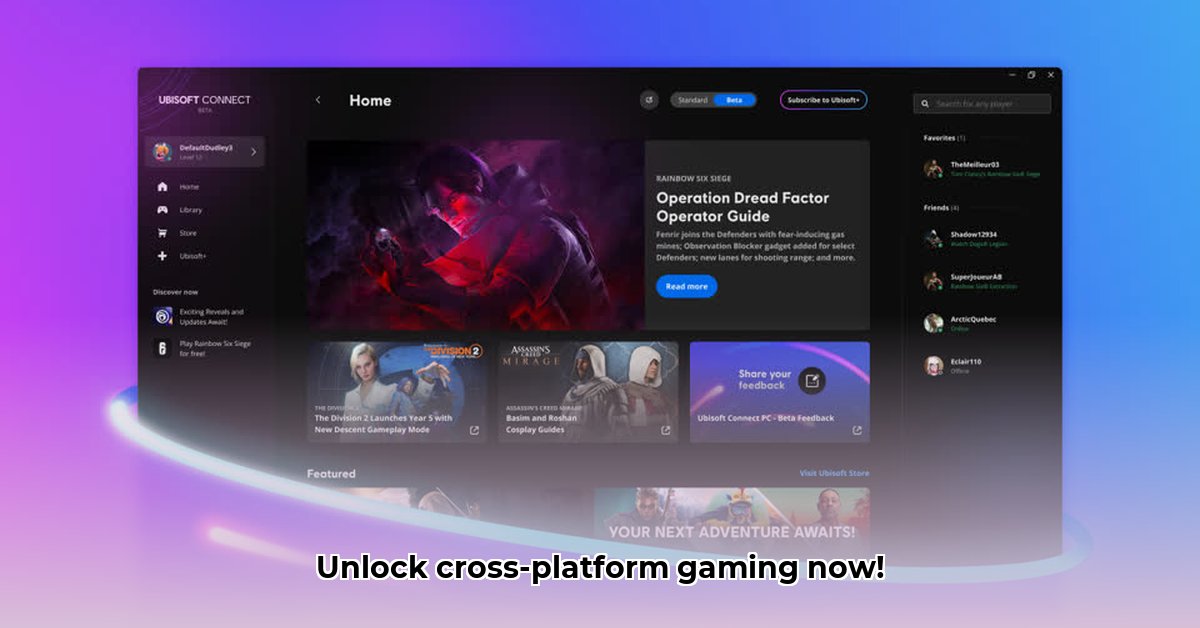
What is Ubisoft Connect App?
Ubisoft Connect is your central hub for all things Ubisoft. It's the evolved successor to Uplay and Ubisoft Club, offering a streamlined experience for managing your Ubisoft games, connecting with friends, and earning rewards. Most importantly, it enables seamless cross-platform play, allowing you to continue your game progress across PC, PlayStation, Xbox, and Switch. Ready to experience the convenience of cross-platform gaming? Let's dive in!
Key Features: Level Up Your Gaming Experience
Ubisoft Connect boasts several key features designed to enhance your gaming experience:
Cross-Platform Play and Progression: Enjoy the ultimate convenience! Continue your game progress seamlessly across various platforms (PC, PlayStation, Xbox, Switch). Keep in mind that this feature isn't universally available for every Ubisoft title; always verify its availability for the specific game you're playing. How many hours have you lost switching between consoles?
Units: Your Ticket to Awesome Rewards: Earn Units by playing games, tackling challenges, and participating in events. Redeem these Units for exclusive in-game items, discounts, and other exciting rewards!
Social Buzz: Connect with Your Crew: Easily connect with friends, see their activity, and even send messages directly through the app. It’s the perfect tool to organize gaming sessions and share your achievements. How many friends do you have that play Ubisoft games? It's time to connect with them all!
Account Management: Effortless Organization: Manage your Ubisoft account, link your platforms, adjust your profile, and easily access your game library – all in one place.
A Step-by-Step Guide: Getting Started with Ubisoft Connect
Let's navigate the setup and usage of Ubisoft Connect with these easy steps:
1. Installation and Setup:
- PC: Download the Ubisoft Connect PC client from the official Ubisoft website.
- Consoles: Ubisoft Connect is usually integrated into the console's interface. Locate it, launch it, and follow the on-screen instructions. It's very straightforward.
2. Linking Accounts:
- Sign in to Ubisoft Connect (or create an account).
- Navigate to the settings menu and link your PlayStation Network, Xbox Live, or Nintendo Switch Online accounts.
3. Navigating the Interface:
The interface is intuitive. You'll find your game library, newsfeed, rewards section, and friends list all conveniently organized.
4. Accessing and Redeeming Rewards:
- Go to the "Rewards" section.
- Browse available rewards.
- Select your desired rewards and redeem them using your earned Units.
5. Troubleshooting Common Issues:
Consult Ubisoft's support website or contact their customer support team for assistance with any problems you encounter.
Ubisoft Connect vs. The Competition
Ubisoft Connect competes with platforms like Steam and Origin. Its strength lies in its seamless cross-progression feature, fostering a strong community among Ubisoft game players.
Frequently Asked Questions (FAQ)
Q: What happens to my Uplay/Ubisoft Club data? A: Your data is usually transferred to Ubisoft Connect. If you encounter problems, reach out to Ubisoft support.
Q: Does every Ubisoft game support cross-platform play? A: No. Check the game's details within Ubisoft Connect.
Q: How do I get help with Ubisoft Connect issues? A: Visit Ubisoft's support website or contact their customer support.
How to Fix Ubisoft Connect Cross-Play Issues
Cross-play can sometimes encounter issues. Here’s a structured plan to resolve common problems:
Tier 1: Quick Fixes:
- Restart: Reboot your PC and router.
- Update Ubisoft Connect: Get the latest version from the official website.
- Close Resource-Hungry Apps: Use Task Manager to close apps consuming bandwidth.
- Check Your Internet: Confirm your internet connection is working.
Tier 2: Network Adjustments:
- DNS Flush and IP Renewal: Use Command Prompt (Run as administrator):
ipconfig /flushdnsandipconfig /renew. Restart your PC. - IPv6 Toggle: Temporarily disable IPv6 in Network Connections.
- Proxy Check: In Internet Properties, ensure "Automatically detect settings" is enabled.
- DNS Server Switch: Try Google Public DNS (8.8.8.8 and 8.8.4.4).
Tier 3: Advanced Troubleshooting:
- Driver Updates: Update network and graphics card drivers.
- Windows Network Troubleshooter: Use Windows' built-in tool.
- Software Conflicts: Uninstall recently installed programs that might be interfering.
- Date & Time: Ensure your system's date and time are correct.
This guide should help you navigate and troubleshoot Ubisoft Connect. Enjoy the benefits of cross-platform gaming!
⭐⭐⭐⭐☆ (4.8)
Download via Link 1
Download via Link 2
Last updated: Saturday, May 03, 2025